
Start with your chosen text
Select Original text or Explanation when both are available. The toolbar’s book-pages button opens that version in Immersive Reader.
Open Microsoft Immersive Reader when you want an alternative reading experience.
Reading Mode is your starting point. If you prefer Microsoft Immersive Reader, you can open it from the reading toolbar and come back whenever you like.
How to open Immersive Reader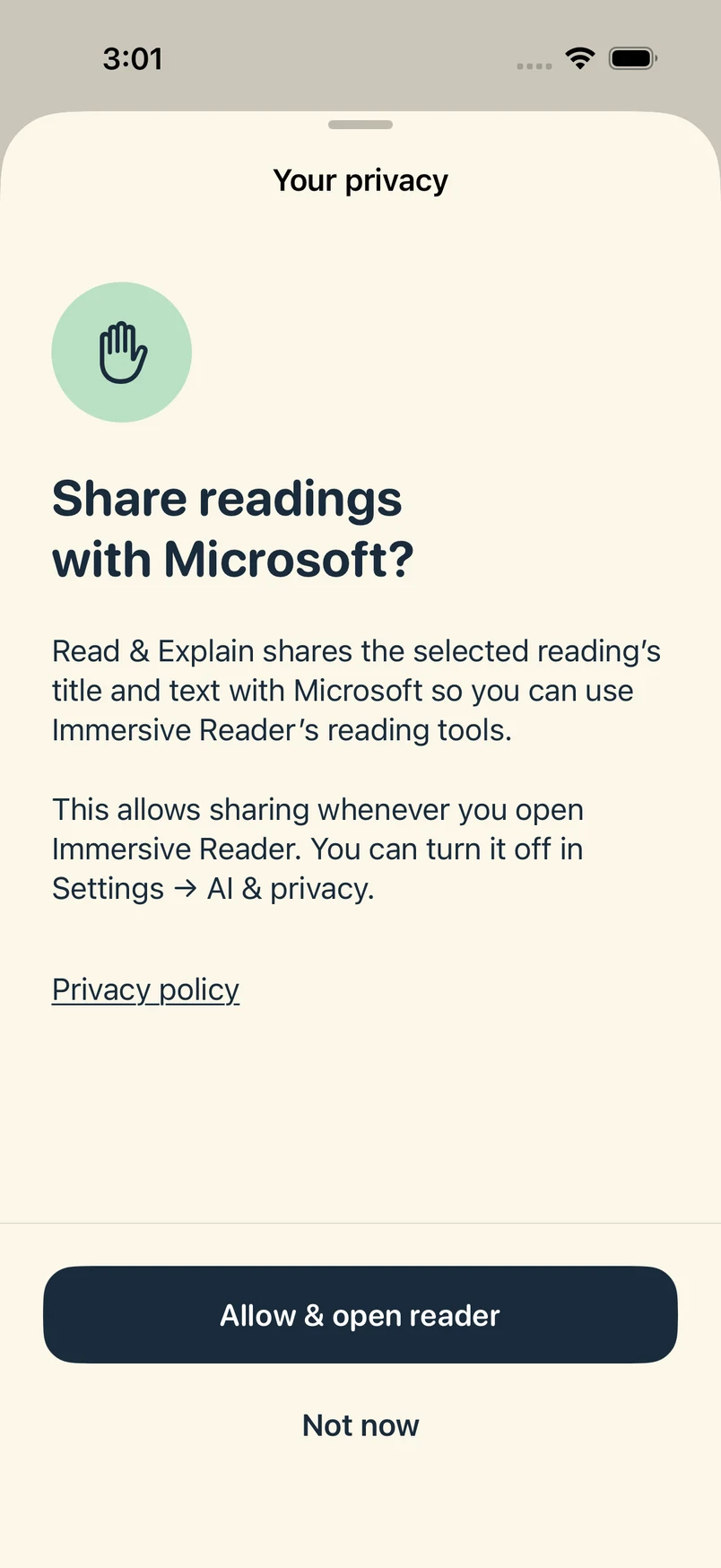
Select Original text or Explanation when both are available. The toolbar’s book-pages button opens that version in Immersive Reader.
The first time, the app asks permission to send the reading’s title and text to Microsoft. This permission is separate from sharing photos with OpenAI.
Close Immersive Reader to return to Reading Mode. Your saved reading stays in the library, ready to read or listen to again.
Open a saved reading, choose the version you want, and tap the book-pages icon. After reviewing the sharing permission, continue in Microsoft’s reader.
Immersive Reader requires an active membership and an internet connection. It is optional: you can use Reading Mode and built-in Listen without sharing your reading with Microsoft.