
Ask for a simpler explanation
Choose Explain it for a new photo, or add an explanation to a saved reading that has a source photo and does not already have one.
Get an AI explanation of the content in your photo, in simpler language.
Sometimes making the letters bigger is only the beginning. Explain it helps you make sense of unfamiliar wording in a letter, notice, or page.
How to get an AI explanation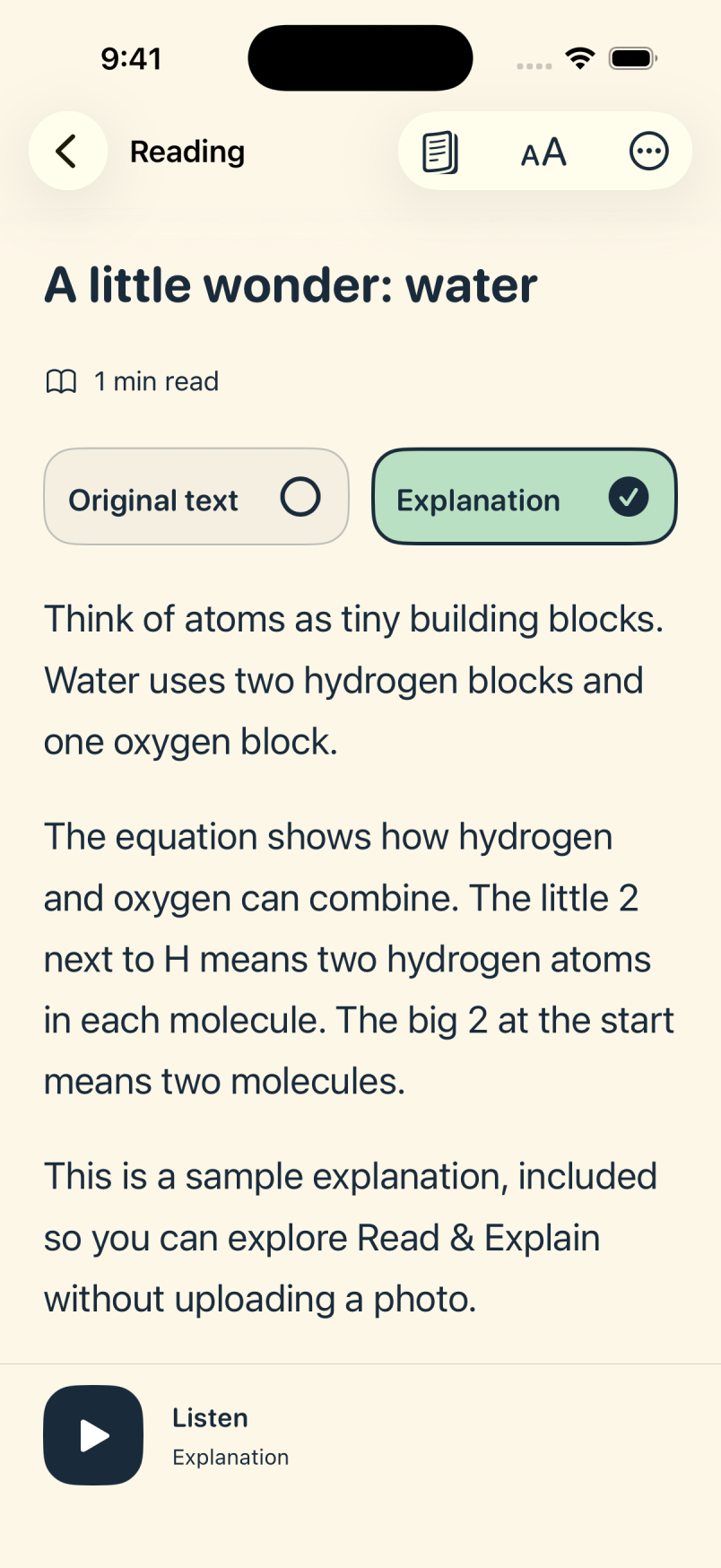
Choose Explain it for a new photo, or add an explanation to a saved reading that has a source photo and does not already have one.
When a reading has both, switch between Original text and Explanation. Return to the source photo whenever you want to check a detail.
Select Explanation and tap Listen. Apple’s built-in voices read the version you have chosen, at your preferred speed.
Photograph the section with unfamiliar wording and choose Explain it. Read the AI explanation, then compare any important details with the original letter.
Creating an explanation needs an active membership, an internet connection, and your OpenAI sharing permission. It uses the same daily allowance as reading a photo. AI can misunderstand or omit details, so check important information against the original.