Start with what is in front of you
Take a photo with the camera, or choose an existing photo or screenshot. Read it extracts the words into Reading Mode.
Use AI to turn the words in a photo into text you can enlarge, listen to, and keep.
A package label. A menu across the table. A letter with tiny type. Take a clear photo and give those words a reading space of their own.
How to read your first photo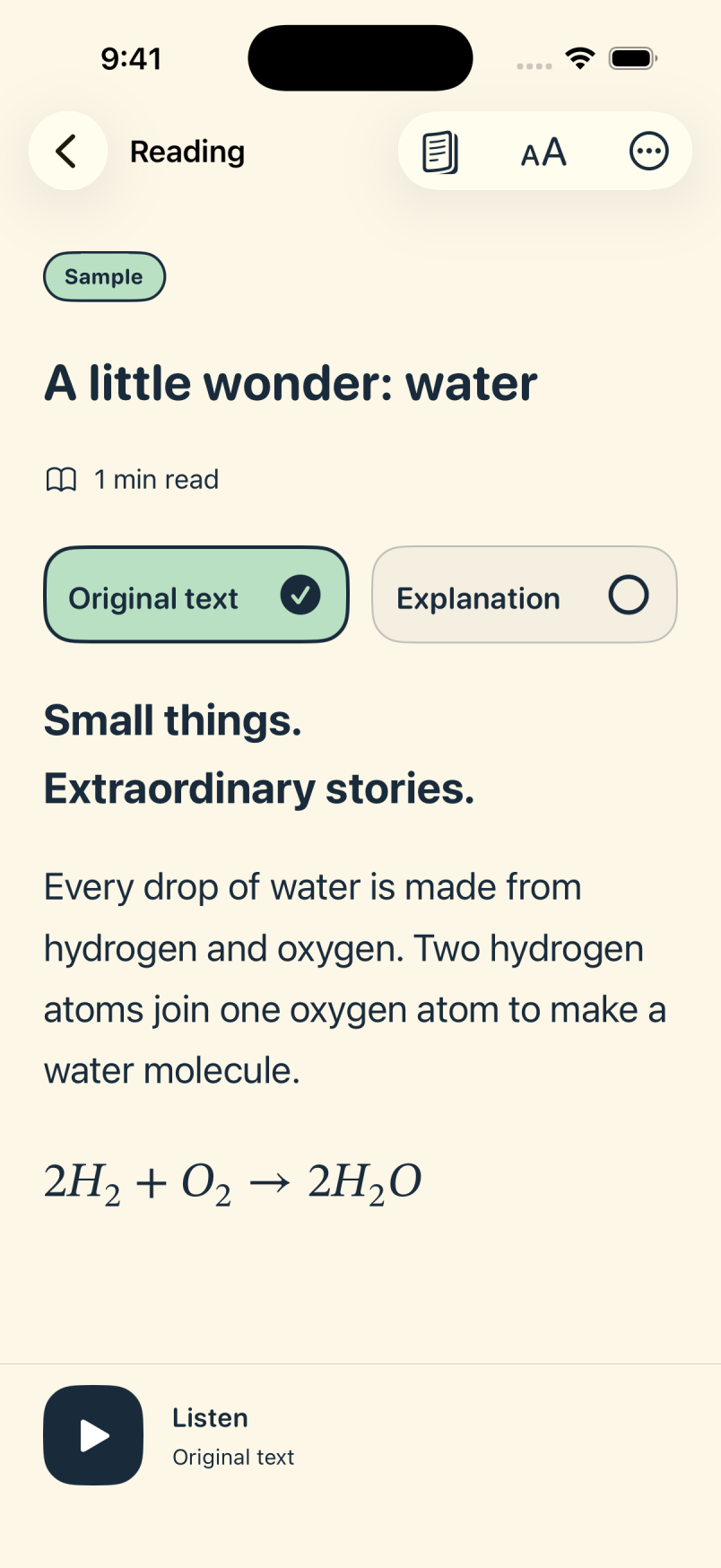
Take a photo with the camera, or choose an existing photo or screenshot. Read it extracts the words into Reading Mode.
Make the text larger, add space between lines, or tap Listen. These choices can help with low vision and small print, or simply make reading more comfortable.
The source photo stays with the saved reading so you can compare it with the extracted text.
Photograph a clear section of a package label. Once it is processed, enlarge the words or hear them aloud while you read the packaging.
Photo processing needs an internet connection, permission to share the photo with OpenAI, and an active membership. AI can misread text; clear detail and reduced glare help, and you can check the result against your photo.